The block editor
Éclair’s block editor: the 17 blocks, the / command, pasting from Word, SEO and GEO analysis, version history and scheduled publishing.
Contents
- What are the 17 blocks in the block editor?
- How do you insert and move a block?
- How do you format text and create links?
- What’s in the Document, SEO and Analysis tabs?
- What is “Key takeaways” for?
- How do you save, preview and schedule?
- What are the keyboard shortcuts?
- Does the block editor work with the AI assistant?
- Questions about the editor
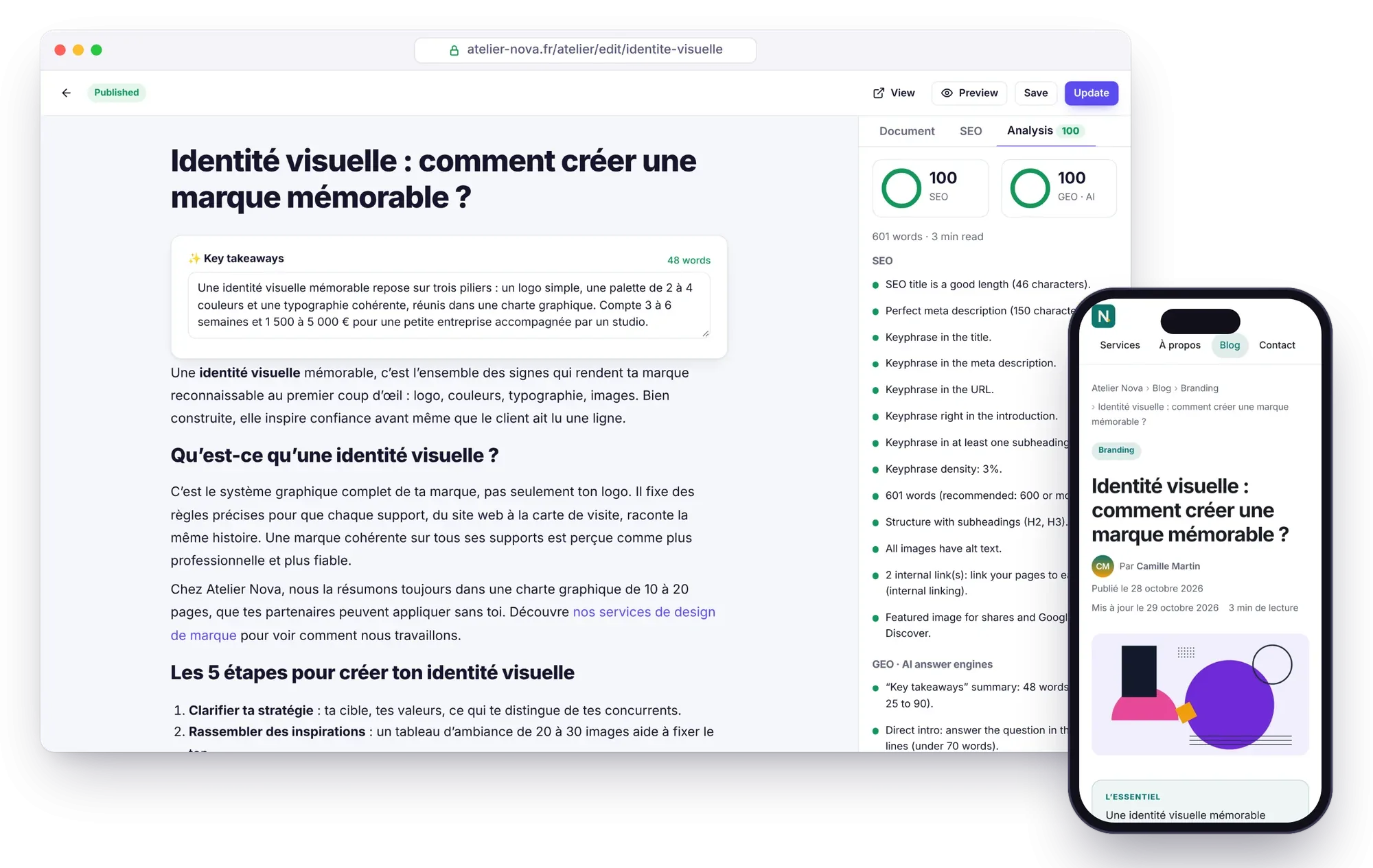
Éclair’s block editor splits every page into blocks: a paragraph, a subheading, an image, a FAQ… You add them by typing /, move them with your mouse and see the effect of each change on your SEO and GEO scores in real time. No code, no plugins: everything is built in.
What are the 17 blocks in the block editor?
Each block has a specific job. Together, they cover anything from a blog post to a full homepage.
| Block | What it’s for |
|---|---|
| Text | A paragraph, with bold, italic, links, code and highlighting. |
| Subheading | An H2, H3 or H4 section heading: it feeds the table of contents. |
| List | A bulleted or numbered list. |
| Quote | A highlighted sentence, with its author. |
| Image | An image from the media library, at normal, wide or small size, with a caption. |
| Callout | A “Good to know”, “Tip”, “Warning”, “Remember” or “Note” message. |
| FAQ | Questions and answers, automatically marked up as FAQPage. |
| Table | Data in rows and columns, with a header row. |
| Button | A call to action, primary or secondary. |
| Video | A YouTube or Vimeo video, with no cookies until it’s clicked. |
| Code | A source code snippet, displayed as is. |
| Separator | A line to break up a long page. |
| Banner | A big welcome headline with text, an image and two buttons. |
| Features | A grid of services or benefits, with icons. |
| Team | Portraits with a name, job title, short bio and link. |
| Latest posts | An automatic list of your latest posts. |
| Contact form | A spam-proof form, without a captcha. |
The FAQ block generates schema.org FAQPage structured data: Google and AI answer engines immediately understand that it contains questions and answers.
How do you insert and move a block?
Three moves are all it takes:
- On an empty line, type
/: the list of blocks opens. Filter it by typing a few letters, then confirm withEnter. The Add a block button does the same thing with the mouse. - Drag a block by its handle to move it.
- Delete a block in one click: a Cancel button appears for a few seconds in case you change your mind.
In a text block, Enter creates a new paragraph and Shift+Enter a simple line break.
How do you format text and create links?
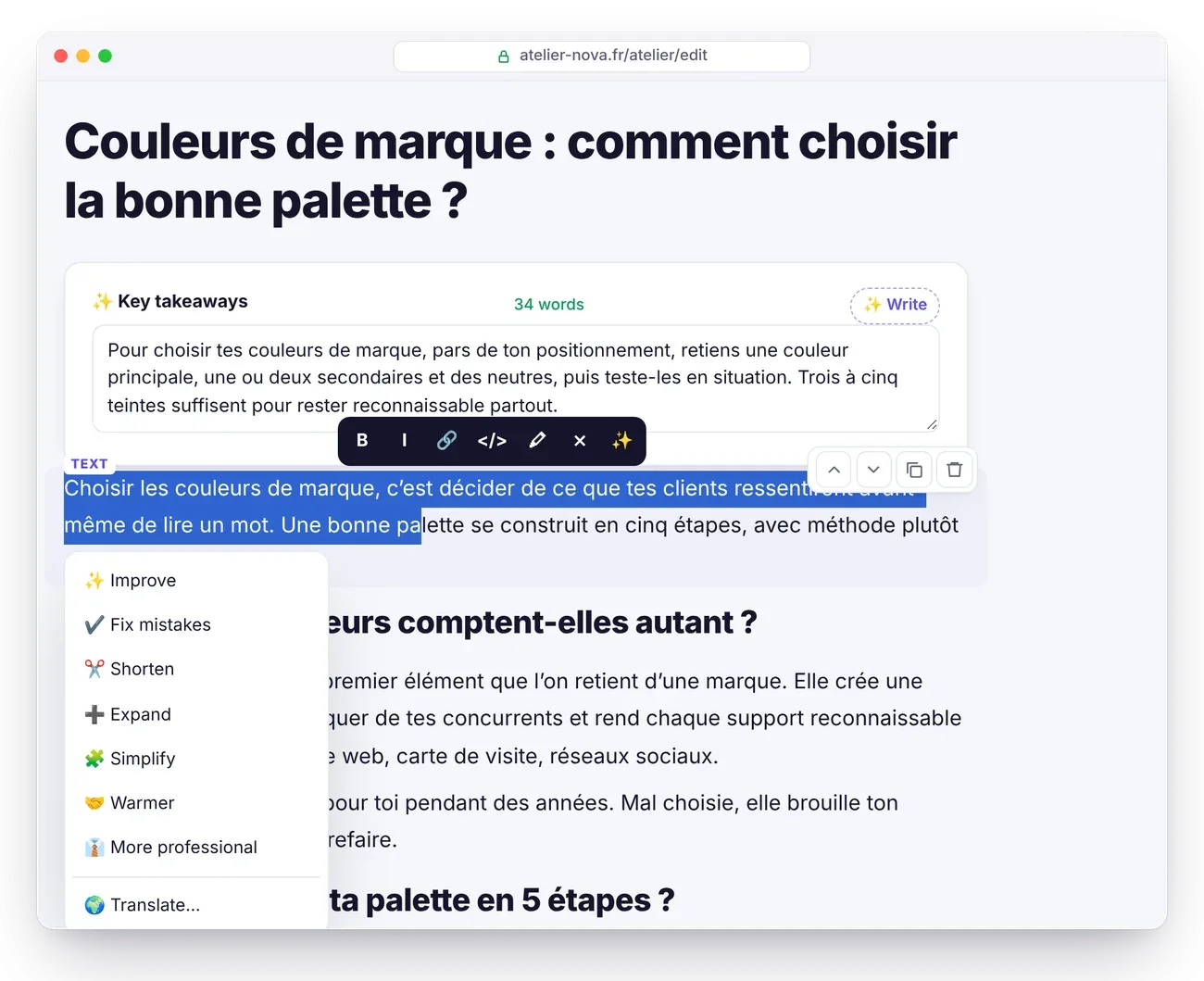
Select a passage: the formatting toolbar offers bold, italic, link, code and highlight. For a link, press Ctrl+K. The block editor then suggests your own pages and posts as you type: internal linking, which matters a lot for SEO, takes two seconds.
What’s in the Document, SEO and Analysis tabs?
To the right of the editor, three tabs group the content settings.
- Document: status (draft or published), publish date, web address (URL), category, featured image, author, language, linked translation, layout (hide title, full width, table of contents), version history, duplicate and delete.
- SEO: the Google preview, the SEO title (ideal: 30 to 60 characters), the meta description (110 to 160 characters), the focus keyphrase and, under the advanced options, the canonical URL and noindex.
- Analysis: your SEO and GEO scores out of 100, recalculated as you write, with a concrete tip for each point to improve.
If you change the URL of content that’s already published, Éclair automatically creates a 301 redirect from the old one: no broken links. The checks are explained in detail in the SEO and GEO: getting cited by AI guides.
What is “Key takeaways” for?
Above the content, the Add “Key takeaways” button opens a field where you sum up your page in 2 or 3 sentences: the direct answer to the question your reader is asking. This summary appears at the top of the article and in llms.txt. It’s often the passage AI quotes word for word. Aim for 25 to 90 words.
How do you save, preview and schedule?
Ctrl+Ssaves at any time. Meanwhile, the editor keeps a local draft in your browser: if the connection drops, it offers to restore the unsaved version.- Preview shows the content as it will appear on the site, before anything is published.
- Publish date: leave it blank for “now”, or pick a future date to schedule publication. The time follows the site’s time zone (Settings › General), not your computer’s.
- Version history: the last 20 versions of each piece of content are kept. Click Restore to go back to one of them.
What are the keyboard shortcuts?
| Shortcut | Action |
|---|---|
/ on an empty line | Insert a block |
Ctrl+S | Save |
Ctrl+K | Create a link |
Ctrl+B | Bold |
Ctrl+I | Italic |
Enter | New paragraph |
Shift+Enter | Line break |
Ctrl+J | Open the AI assistant |
On a Mac, use Cmd instead of Ctrl.
Does the block editor work with the AI assistant?
Yes, if you’ve turned it on. Select a passage, then click ✨: the assistant offers to improve, fix mistakes, shorten, expand, simplify or translate the text. A click on “Cancel” restores the original. Everything is explained in the AI assistant guide.
Questions about the editor
Can I edit a block’s HTML code?
No, and that’s on purpose: every text is sanitized against an allowlist of tags (bold, italic, link, code…). Your site stays clean, accessible and protected against script injection.
What happens if I close the tab without saving?
The editor keeps a local backup draft. The next time you open the content, it offers to restore the unsaved version.
How do I schedule a post for later?
In the Document tab, choose a future date, then publish. The post goes live at the scheduled time, in the site’s time zone, and the cache updates itself.
How do I embed a video without cookies?
Use the Video block with a YouTube or Vimeo link. The player, and its cookies, only load when the visitor clicks: no cookie banner needed.