Getting started after installation
Getting started with Éclair: the dashboard checklist, what the installation created, the admin menus and the settings to check first.
Contents
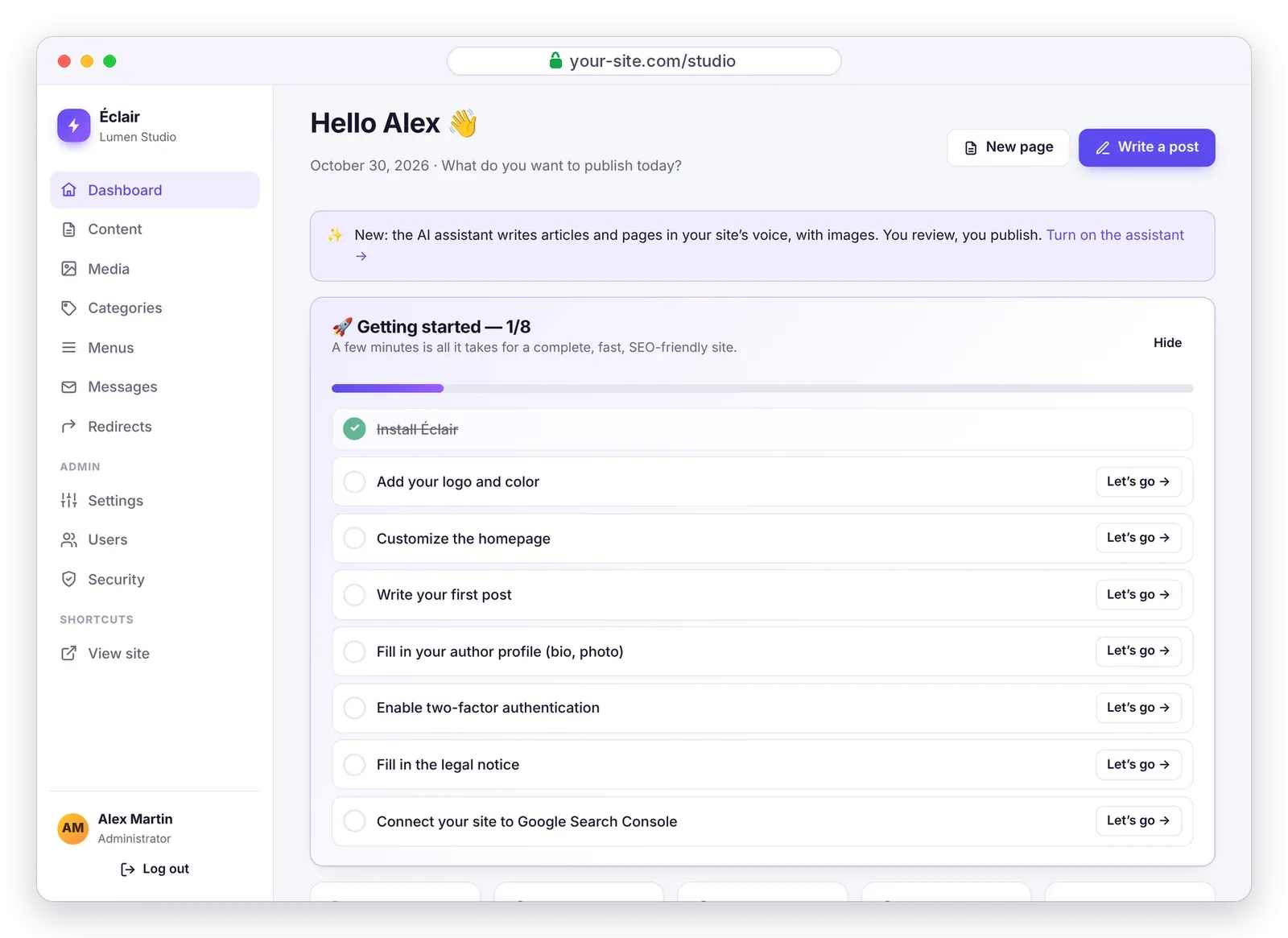
Getting started with Éclair comes down to one checklist. As soon as the installation is done, the dashboard shows you the eight steps that turn the starter site into a complete, credible, SEO-friendly site. Allow about ten minutes, one step at a time: each line takes you straight to the right screen.
What’s in the “Getting started” checklist?
The checklist ticks off each step on its own once it’s done and shows your progress, from 1/8 to 8/8. When everything is finished, it says “All set, well done!” You can also hide it at any time.
| Step | Where | Why |
|---|---|---|
| Install Éclair | Already done 🎉 | Your site, your account and the first pages exist. |
| Add your logo and color | Settings › Appearance | Your site looks like you from the very first visit. |
| Customize the homepage | Content | The starter homepage contains sample text. |
| Write your first post | Dashboard › Write a post | An active blog brings in visitors from Google. |
| Fill in your author profile (bio, photo) | My profile | An identified author builds trust (E-E-A-T). |
| Enable two-factor authentication | My profile › Two-factor authentication | Even if your password leaks, your account stays locked. |
| Fill in the legal notice | Content › Legal notice | It’s mandatory for a professional website in France and the rest of the EU. |
| Connect your site to Google Search Console | Settings › SEO | You track your rankings and clicks in Google. |
You can pick any main color: Éclair automatically adjusts text contrast so it stays readable, following the WCAG accessibility standards. Six system font stacks are available: zero downloads, instant display.
What did the installation create?
The setup wizard creates starter content based on the site type you chose. It exists in English, French and Spanish.
| Site type | What gets created |
|---|---|
| 🏢 Business website | Home (banner, features, latest posts), Services (with FAQ), About, Contact, Blog, legal notice, privacy policy |
| ✍️ Blog | Home = latest posts, About, Contact, a “Guides” category, legal pages |
| 🧑💻 Freelancer / portfolio | Home in your name, skills, About, Blog, Contact, legal pages |
| 🎯 Landing page | A sales page (banner, features, FAQ, form) and the legal pages, no blog |
The legal pages contain an outline to fill in: LCEN in France, LSSI in Spain, GDPR. A sample post, “Getting started with Éclair”, shows off the available blocks: edit it or delete it whenever you like.
How is the admin organized?
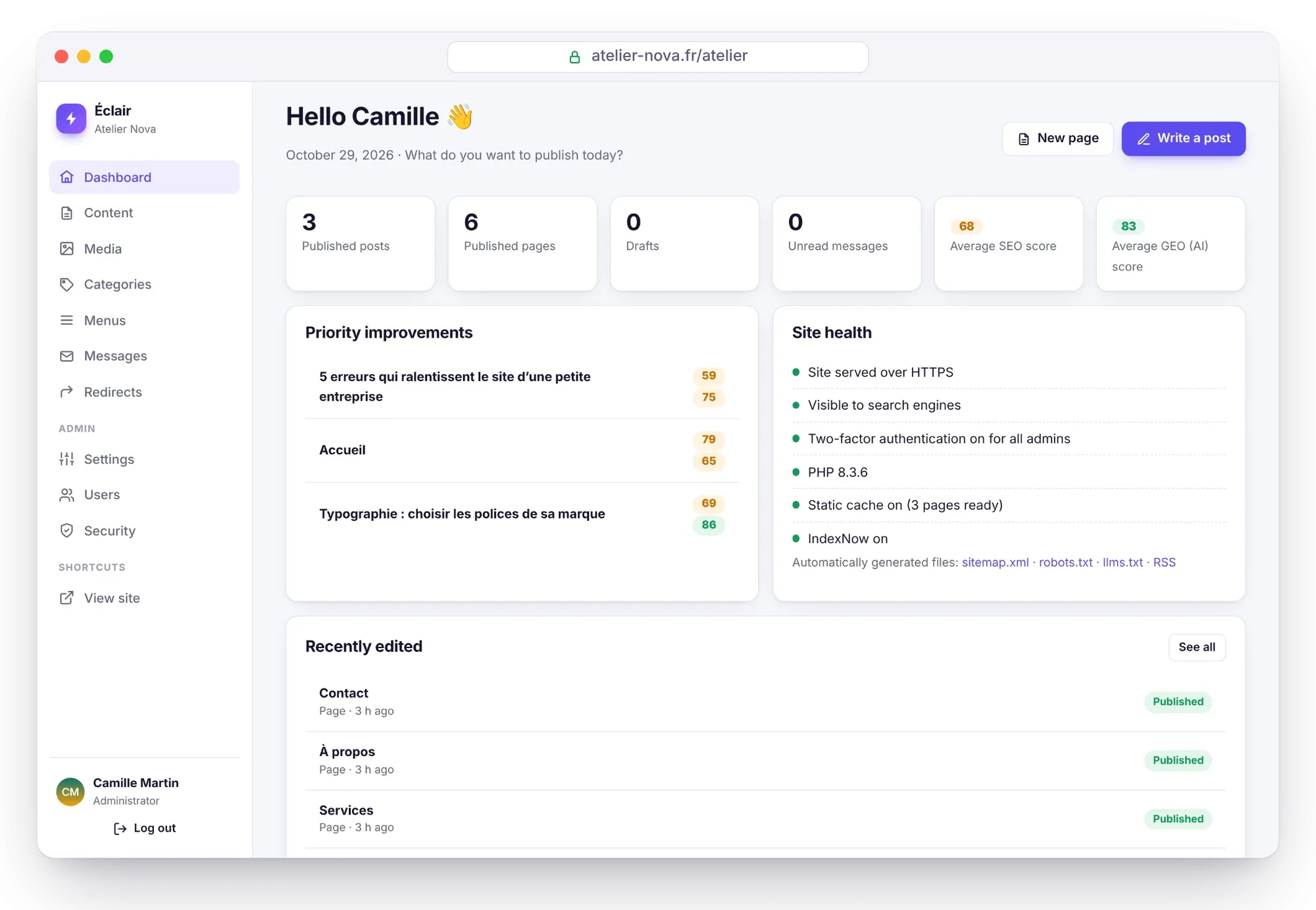
The menu on the left holds everything you need, with no endless submenus:
- Dashboard: the checklist, your statistics (published posts and pages, drafts, unread messages, average SEO and GEO scores), the content listed under “Priority improvements” and site health.
- Content: your pages and posts, whether published, scheduled or in draft.
- Media: your images, resized and converted to WebP on upload.
- Categories and Menus: the structure of your blog and the links in the header and footer.
- Messages: what your visitors send you through the contact form.
- Redirects: old URLs sent to new ones.
- Settings: 7 tabs (General, Appearance, SEO, AI & GEO, AI assistant, Contact, Advanced).
- Users and Security: for administrators only.
There are two roles: Administrator, with access to everything, and Editor, who manages content and media.
Which settings should you check first?
Three screens deserve five minutes of your attention on day one:
- Settings › General: the site name, the tagline (it appears in the homepage title), the official site URL (with or without “www”, once and for all), the language, the time zone and the homepage.
- Settings › SEO: the “Visible to search engines” box (uncheck it while you build: everything is set to noindex), the type of entity behind the site (business, person or local business) and your social profiles.
- Security: click Verify the site address. Once the address is verified, Éclair redirects visitors to the official version (https, with or without www).
To connect Google Search Console, add a “URL prefix” property, choose the “HTML tag” method, then paste the whole tag into Settings › SEO › Webmaster tools: Éclair extracts the code on its own.
What comes after getting started with Éclair?
You’re done getting started with Éclair. To go further, explore the block editor, then the SEO and GEO: getting cited by AI guides. If you’re coming from WordPress, the migration method will help you bring your content over.
Questions about getting started
Can I delete the starter content?
Yes. It’s only there as an example: edit or delete it from Content. If you delete published content, Éclair can redirect its URL to another page.
How do I change the site type after installation?
There’s nothing to reinstall: create or delete pages, turn the blog on or off in Settings › General, then adjust your menus. The type you chose only serves to prepare the first content.
Why isn’t the checklist ticking off?
Each step is ticked off once the action is actually done: for example, a bio of at least 40 characters for the profile, or a Google code saved in Settings › SEO. You can also hide the checklist at any time.
Is my site visible on Google right after installation?
Yes, if you left the “Google and Bing can index my site” box checked during installation. Otherwise, check “Visible to search engines” in Settings › SEO when your site is ready.